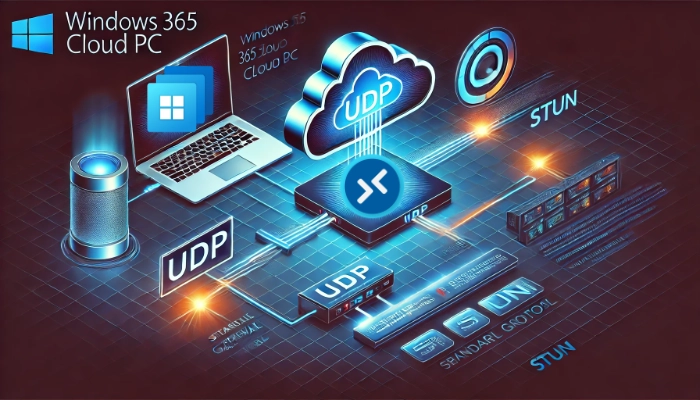
When using Windows 365, you’re using a fully hosted service completely managed by Microsoft. But what happens if your connection isn’t great? What options for improvement do you have? And what does Microsoft provide to optimize your experience? In this article, I’ll focus on establishing a direct connection over the public internet using RDP Shortpath.
The good news is, all the default settings within Windows 365 and Windows will make sure that everything runs as smoothly as possible when connecting with a Cloud PC over the public internet.
Let’s break it down
One of the key advantages of Windows 365 is that you don’t have to manage all the complex frontend components like gateways, web access, or license servers. Instead, Microsoft manages this all for you and provides you with a single public URL that you use to connect with the gateway. This gateway seamlessly connects you to your Cloud PC session.
Reading the text above, you’ll notice that establishing a good connection involves multiple components. The downside of having several components is that each additional hop can increase latency, leading to a higher Round Trip Time (RTT). This, in turn, can negatively impact connection performance and result in a less responsive experience.
But ensuring a smooth and responsive connection requires some understanding of how your network traffic flows and what optimizations are available.
The default connection route
Everything starts when you open a connection to a Cloud PC within the Windows App. This outbound request will establish a connection with the Microsoft Managed (AVD) gateway over port 443 (https) which will broker a session using reverse connect with the associated Cloud PC. This itself is a very secure process.
The problem with this setup is that all traffic will be routed through the gateway. Simplified, this would look like this:

The connection could however be improved if the client and the Cloud PC could talk to each other directly, bypassing the gateway. Something that is very challenging because the Cloud PC and the Client are almost always in different networks.
STUN vs TURN: Direct Communication
STUN and TURN are both protocols specifically designed to help devices directly talk to each other over different public networks. I’ll quickly explain the differences and how they work.
STUN helps devices find out their public IP addresses so they can try to connect directly. This works well when the network allows direct connections. But if a direct connection isn’t possible due to strict firewalls or NAT settings, TURN steps in.
TURN: Instead of connecting directly, the data is sent through a relay server, ensuring the connection works but adding more delay compared to STUN. Both STUN and TURN work over UDP. By using UDP, they enable faster, low-latency communication.
These techniques are not new and are already used in various VOIP or Streaming scenarios, like Microsoft Teams.
STUN and TURN with Windows 365 RDP Shortpath for Public Networks
So to optimize the Windows 365 (and AVD) sessions, Microsoft provides dedicated STUN and TURN servers where the Cloud PC and Client can exchange their public IP addresses. (These servers are spread over multiple regions)This information in turn (haha) can be used to establish a direct connection if possible. If the direct connection is not possible the TURN Relay server will be used to still allow UDP traffic. These steps are done automatically after a connection is established and if a successful connection can be made, the session will automatically be migrated to use that direct (UDP) connection and drop the connection over the gateway.
If this process fails, it falls back automatically to the above image where only a TCP connection is being used.

Enabled by default!
This whole process of bypassing the gateway for UDP traffic is called RDP Shortpath.
Especially on Windows 365 and on public networks, RDP Shortpath is enabled by default both at client level and on Cloud PC level. This makes sure that you are using a connection which is as optimized and as low latency as it can get. Did I mention that it’s secure as well because it uses TLS encryption (based on the Cloud Endpoint’s certificate) over the UDP connection.
So now you know what’s needed to establish a direct connection over the public internet using RDP Shortpath.
RDP Shortpath for private networks
A quick side note, RDP Shortpath is also available for private networks. In this case, establishing a direct connection is easier since you likely manage both the client and VDI networks. This control allows you to enable direct communication between the client and the session host over the private network, eliminating the need for STUN or TURN servers.
When a direct connection is possible, you still need to configure the RDP Shortpath listener on your AVD session hosts or Cloud PC which uses UDP port 3390 by default. Make sure to allow this port from your client network to your AVD/Cloud network as well, so they can establish a direct connection.
Check your production environment
So now that you know what RDP Shortpath is, you realize that you want to be using it. If you are not using it because of strict security policies, please share those scenarios in the comments.
It’s easy to check if your connection is using UDP, you can simply connect on the “Connection information” button after right clicking your title bar. If you are using AVD or Windows 365 in full screen mode you can click the reception bars (in the hover menu at the top) to open the same dialog.

So it clearly states that the connection is using UDP, which is what I want. I can also view extra information by opening the “See details” drop down interface.

Ignore the fact that it still identifies the local connection as a Windows 10 and focus on the Transport Protocol which clearly states UDP. Which is good! If UDP is being used, it will also provide information about Graphics and shows which Remote FX codes are being used.
Take note of the gateway name as well, where it indicates that no gateway is being used, indicating that a direct connection is successfully established.

If your connection does not use UDP, it will look like this.

Opening the details menu now shows that the connection is established as a WebSocket (TCP) connection only, without any graphical performance details. However, it does display the gateway your Cloud PC or AVD host is connected through.

Troubleshoot the lack of UDP traffic
If UDP traffic isn’t possible, it may be due to your client being configured to block UDP or because your Client is unable to reach the STUN or TURN relay server.
Verify network traffic
The most common scenario is that traffic is being blocked on a network level.
For Cloud PCs in combination with a Microsoft Hosted Network, in general if you are not using a VPN, you only need to verify the Client traffic. The general rule of thumb is to allow outbound traffic from both the AVD/Cloud PC as well as your client machines to the STUN and TURN relay servers provided by Microsoft.
After fetching the required information from the STUN server, they will try to establish a direct connection over the public internet, hence the required STUN traffic ports.
| Traffic | Destination | Port |
|---|---|---|
| STUN traffic | * | 1024-65535 (default 49152-65535) – udp |
| STUN infrastructure/TURN relay | 20.202.0.0/16 | 3478 – UDP |
| TURN relay | 51.5.0.0/16 | 3478 – UDP |
Verify Client Settings
It’s also possible that your Client is configured to not allow UDP traffic. You can easily check this on your client with this script (provided by Microsoft):
$regKey = Get-ItemProperty -Path "HKLM:\SOFTWARE\Policies\Microsoft\Windows NT\Terminal Services\Client"If ($regKey.PSObject.Properties.name -contains "fClientDisableUDP" -eq "True") { If (($regkey | Select-Object -ExpandProperty "fClientDisableUDP") -eq 1) { Write-Output "The default setting has changed. UDP is disabled." } elseif (($regkey | Select-Object -ExpandProperty "fClientDisableUDP") -eq 0) { Write-Output "The default setting has changed, but UDP is enabled." }} else { Write-Output "The default setting hasn't been changed from its default value. UDP is enabled."}
Managed setting
If you are in a domain it’s likely caused by a management policy. If using GPO, make sure that this setting is set to not configured.
You can find this setting at “Computer Configuration / Administrative Templates / Windows Components / Remote Desktop Services / Client connection to a remote desktop” (Remote Desktop Connection Client)”.

If you are using Intune it’s possible that this setting is configured:

Local firewall
It’s also possible that UDP traffic is being blocked on the local firewall. This can also be configured through a centrally managed policy.
Good to know
There are some things to take into consideration when you want to use RDP Shortpath:
- If you disable network connectivity to the Microsoft managed STUN/TURN server, information might still be cached, still allowing the direct STUN connection.
- If you don’t want to allow RDP Shortpath, make sure to disable it through a policy on your clients as well. Not doing so and only disallowing access to the network ranges might cause connectivity issues.
- Enabled by Default for Public Networks: No additional setup is needed to establishing a direct connection over the public internet using RDP Shortpath.
- RDP Shortpath for private networks is possible as well and does not require a STUN or TURN server, you just allow a direct UDP connection on port 3390 and configure the listener.



Leave a Reply