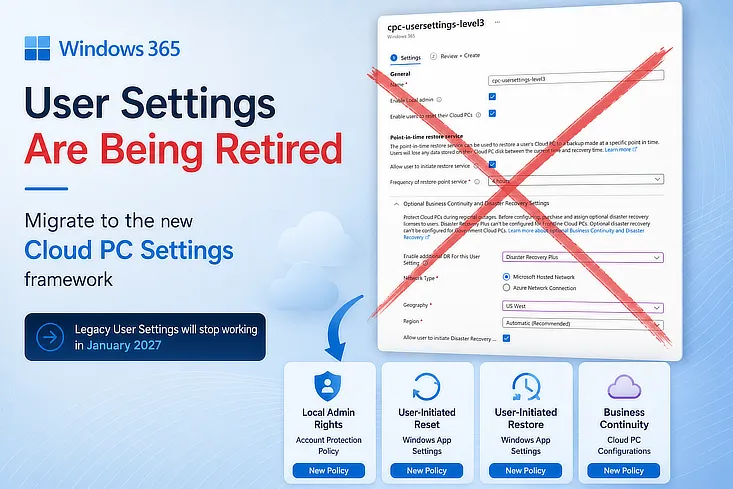
Microsoft has announced through a Message Center notification MC1418556 that the existing Windows 365 User settings experience will be retired in favor of the new Cloud PC Settings framework in Microsoft Intune.
If you currently use User settings in your Windows 365 environment (which you probably do), you need to migrate these configurations before January 2027. Microsoft will stop applying existing policies and won’t migrate them automatically.

What’s changing?
Microsoft is moving Windows 365 settings into the new centralized Cloud PC Settings experience. You can find this in the Microsoft Intune admin center under Devices > Cloud PC Settings. The new framework provides a better and more central location to manage different Windows 365 configuration types providing a more scalable option. User settings with Disaster Recovery settings in my opinion were always strangely placed out there.

Microsoft has announced the following retirement timeline:
| Date | Change |
|---|---|
| September 2026 | You can no longer create new legacy User settings policies. |
| October 2026 | Existing User settings policies become read-only and can no longer be edited. |
| January 2027 | Legacy User settings are fully deprecated and will no longer function. |
What impact does it have on you?
User settings have been the primary way to configure several important Windows 365 features over the last few years. They control user-initiated restore actions, local administrator permissions, and are also used to configure Cross-region Disaster Recovery and Disaster Recovery Plus.
Because these settings will eventually stop working, simply leaving your existing policies in place isn’t an option. Without migrating them to Cloud PC Settings, you could lose important functionality and potentially introduce unintended consequences into your production Windows 365 environment.

How to Move
Let’s go over the settings one by one and see where they should be migrated to, one things is sure, you will end up with more policies to achieve the same but have a lot more flexibility.

There are four main configurations covered by the old User settings policies that you should migrate: local administrator rights, Point-in-Time Restore, and Business Continuity settings and User Initiated Reset.
The table below shows where each of these settings should be migrated in the new configuration framework.
| Legacy Setting | New Setting |
|---|---|
| Local Admin Rights | Account Protection Policy |
| Point In Time Restore | Cloud PC Configurations |
| Business Continuity | Cloud PC Configurations |
| User-Initiated Reset and Restore | Windows App Setting |
Local Admin Settings
There is currently no direct replacement in Cloud PC Settings for granting users local administrator rights.
The goal is to manage Windows 365 Cloud PCs more consistently with physical Windows devices, but this creates a gap if you rely on Autopilot to assign local admin rights through a deployment profile. Windows 365 Cloud PCs don’t go through the Autopilot provisioning process so this means you should move this legacy setting towards a Configuration Profile or Account Protection Policy. (Or better yet, use Endpoint Privilege Management)
| Ask yourself if your users still require Administrator rights. |
You can find Account protection policies at Endpoint Security > Account Protection create a new policy to target local group memberships.

Add a group configuration and select the user group that you want to make a member of the local administrators group.

Assign the policy to a dynamic device group that contains all your Cloud PCs, or better, only the Cloud PCs provisioned through a specific provisioning policy.

| Be very cautious with this approach, as you are effectively granting all users local administrator rights on all Cloud PCs targeted by the policy. Although users cannot normally access another user’s Cloud PC through Windows App, they might still be able to connect directly if you are using an Azure Network Connection (ANC) and your network configuration allows it. Microsoft-hosted networks provide stronger isolation by disabling lateral movement between Cloud PCs by default. If you use an ANC, make sure your network segmentation, firewall rules, and NSGs prevent users from reaching other Cloud PCs unless that access is explicitly required. |
Point in Time restore
Point-in-Time Restore settings can now be found under Cloud PC Configurations. Create a new policy and give it a clear name. (for example: Point-in-Time Restore – 12h).
Avoid combining these settings with unrelated settings. It is better to create separate policies for Point-in-Time Restore, Cross-region Disaster Recovery, and Disaster Recovery Plus. This keeps your configuration easier to manage, troubleshoot, and assign to the correct users.
Create the policy and assign it to a user group. Create separate policies with the same settings but different frequency if you want to differentiate between more specific settings.

Disaster Recovery Plus and Cross-Region Disaster Recovery
If you use one of the Business Continuity add-on licenses, Cross-region Disaster Recovery or Disaster Recovery Plus, you can configure these settings from the same location: Cloud PC Settings > Cloud PC Configurations.
Create a separate policy and give it a name, for example: DR Plus – MHN – Europe. Keeping these settings in a dedicated policy makes it easier to identify which disaster recovery configuration applies to specific Cloud PCs. Create separate policies with variations on the same settings if you want to differentiate between more specific settings.
Create the policy and assign it to a User group.

Allow user initiated reset or restore of a Cloud PC
The final settings to migrate are the options that allow users to manually initiate a complete reset of their Cloud PC or restore it from an available restore point. You can find these settings under Cloud PC Settings > Windows App settings.
I prefer to split these settings into separate policies as well. For example, create one policy named Allow User-Initiated Restore and another named Allow User-Initiated Reset. Assign each policy to the appropriate user group based on your requirements.

| If you make use of Disaster Recovery Plus and want user to be able to initiate the DR process themselves, create a separate policy for that as well. |
Ranking Policies
You may also have noticed the new ranking system. If you create multiple policies with the same setting and assign them to groups with overlapping users, the policy with the lowest rank takes precedence. Also note the Rerank Policies button. You can use this to change the order of the ranks on your existing policies.

Wrapping up
Windows 365 User Settings are being deprecated, and this change is more than a simple visual update in Intune. Take the time to review and migrate the settings your environment currently uses so you don’t run into unexpected issues when the legacy policies stop working.
The migration itself is fairly straightforward, but you should take the time to design the right new policies for your environment. Once you’ve migrated and validated your new policies, your Windows 365 environment is ready for the new Cloud PC Settings framework.



Leave a Reply