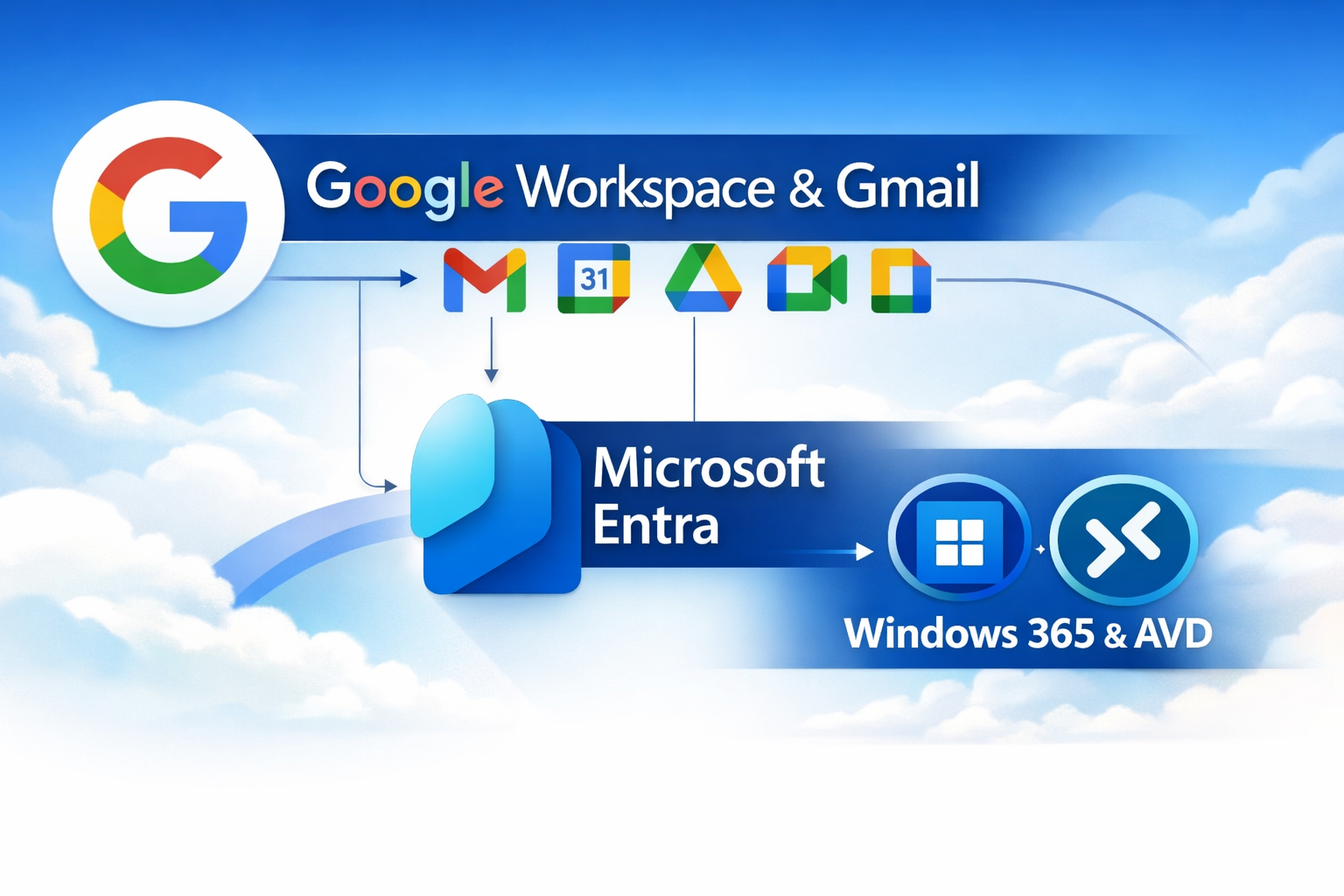
Microsoft now supports External Identities for both AVD and Windows 365 but if you want to make use of Google Workspace or personal google accounts and use their own Identity Provider (IDP) when they authenticate to your tenant, you might need additional configuration.
If you are unsure why you would do this, make sure to read my previous post on External Identities where I break it down step by step and list all technical limitations.
Let’s go over the steps for both of these configurations one by one.
Configure the allowed Identity providers
Start out in Microsoft Entra and navigate to External Identities and open “All Identity Providers”. In here you’ll see a list of all IDPs that can be used for Guest or external users.

The idea here is that we configure Google, and setup a connection with an external Google Workspace tenant.
I would always recommend setting this up with a professional or business account (Entra, Okta, Workspace, …). One of the key benefits of using External Identities is that you do not need to manage the lifecycle of guest accounts. When the source tenant disables an account, the account loses access to your resources. Personal Gmail accounts do not provide this advantage. So think twice if you consider these kind of account.
Configure Personal Google Accounts
| In this section, you create and configure an application in the Google Developer Console and then provide the Client ID and Client Secret to Microsoft Entra ID |
Start out by clicking “Configure” behind the Google logo. If you wish to configure Google Workspace, skip to the Google Workspace setup part lower on this page.

As you can see, Microsoft Entra requires a Client ID and Client Secret. You must create this application yourself, along with its associated secret. This is important because this application explicitly controls which Gmail users can sign in to your tenant ID.

Create an app in Google Developer Console
Head over to the Google Developer Console and sign in with a regular Google account or an existing Google Workspace account. If you are doing this for your company, it is usually a good idea to create a dedicated Google account for this purpose. Start out by creating a new project and naming it.

Go to the OAuth Overview page. You can find it by selecting your project at the top, then navigating to “APIs and Services” and opening the “OAuth consent screen” page. Press Get Started.

In the next steps, you need to provide an application name and a support email address. End users will not see this information, so it does not need to be perfect. If you use separate acceptance and production environments, it is a good practice to name the application accordingly.

Because this application will be used by personal Google accounts, you must mark the application as External. As long as you do not upload custom app icons or make any changes beyond what is described in this guide, Google approval should not be required.

Click Next, provide the required contact information, accept the terms and conditions, then select Create.

Next, create the Client ID and Client Secret. Select Web application as the application type and assign a name to the client secret. You can find this page at “APIs and Services” under submenu “OAuth consent screen” as well.

Configure the association with your Entra tenant
It is important to configure the correct Authorized redirect URIs. These URIs are specific to your environment and ensure that the application can only be used to sign in to your tenant. Add the following entries:
- https://login.microsoftonline.com
- https://login.microsoftonline.com/te/<EntraTenantID>/oauth2/authresp
- https://login.microsoftonline.com/te/<EntraTenantName>.onmicrosoft.com/oauth2/authresp

After selecting Create, Google displays the Client ID and Client Secret. Make sure to take note of both values, as you will need them later when configuring Microsoft Entra. Don’t close the page just yet.

As a final step in the Google Developer Console, navigate to Branding and add microsoftonline.com as an authorized domain. You can do this from the “Branding” page.
After this, publish the application so users can use the application without individual access assignments.

Now publish the app under the Audience pane.

Provide Entra with the Client ID and Secret
You have now configured the application correctly. You can use the Client ID and Client Secret obtained earlier to complete the integration with Microsoft Entra ID.

If you only intend to use personal Google Accounts with Azure Virtual Desktop or Windows 365 you are not yet finished, but you can skip the next part about Google Workspace, make sure to skip to “Resolving the SSO Prompt”.
Configure Google Workspace as an External IDP
| In this section, you create a SAML application in Google Workspace, configure it correctly, and connect it Microsoft Entra ID using a Metadata file. |
The objective of enabling Google Workspace is to configure it as an External Identity Provider. You must complete this setup for every partner that uses Google Workspace. Although it is a one time configuration per partner, it provides strong security advantages by keeping identity ownership with the source tenant.
It’s not possible to just invite a Google Workspace user as an external user. Microsoft cannot associate a Microsoft Entra ID or Microsoft account with that email address, so Microsoft prompts the user to create a new Microsoft account instead using that Email address, that’s not what you want.
Google uses OAuth, so we need to add a custom Identity Provider of type SAML. When you select this option, Microsoft Entra requests detailed configuration information. At this stage, we do not have this information yet, so we first need to complete the required steps to generate it.

Create a new SAML app in Google Workspace
In the Google Workspace Admin portal, open Apps, select Web and mobile apps, and add a new custom SAML application. These steps must be completed on your partners side.

Give the application a name. If you plan to federate with multiple Microsoft Entra ID tenants, you will need a separate application for each tenant, so name the application accordingly.

Next, download the IDP metadata from the Google SAML application. Microsoft Entra requires this metadata file as it includes the SSO URL, entity ID, and signing certificate. These values allow Entra to correctly forward authentication requests to Google and trust the responses it receives.

Now comes a crucial step. We now need to tell Google where authentication requests originate from and associate them with this SAML application. To do this, we must provide the ACS URL and the Entity ID. Mark it as a Signed Response and associate the Name ID format of value EMAIL with the Primary email of the authenticating user.
- ACS URL will always be: https://login.microsoftonline.com/login.srf
- Entity ID: https://login.microsoftonline.com/<EntraTenantID>/
- Start URL: Empty
- Signed response: Yes
- Name ID format: EMAIL
- Name ID: Basic Information > Primary email

Now associate the primary email in Google with the emailaddress attribute in Microsoft Entra by adding the following attribute mapping.
- Google Directory attributes: Primary email
- App Attributes: http://schemas.xmlsoap.org/ws/2005/05/identity/claims/emailaddress
You can also pass group memberships from Google to Microsoft Entra and use them for authorization to specific applications. This is not required for this scenario. Press finish to create the app.

You have now created the application. Make sure it is enabled for your users. You can grant access to everyone or limit it to specific groups.

Upload the Metadata File to Entra
Now return to Microsoft Entra and use the downloaded metadata file to configure your custom SAML identity provider.
Be aware that you can associate multiple domains with a single partner. Create a new SAML or WS Fed identity provider, provide a name, select SAML as the type, and specify the domain name of the external users you want to invite.
Finally, upload the GoogleIDPMetadata.xml file. You are now ready, if you already invited users, you can skip to the “Solving the SSO prompt part”.

Inviting Google Workspace and Gmail user into Microsoft Entra
The configuration is now complete and you can start inviting external Gmail and Google Workspace users. You must invite users from Microsoft Entra as external users. If a user is not invited first, the tenant does not contain the account and the sign in attempt fails. The user will not be created automatically.

Make sure to configure the usage location and add the users to the appropriate groups so it will receive the required licenses. If you do not set the usage location, Microsoft Entra returns an error.

| You must license guest users in your tenant as well |
Microsoft Entra now sends the user an email with a pending invitation. Accept the invitation from within this email.

Whether you are using a Google account or a Google Workspace account, Microsoft prompts you to grant permission to view your profile. Select Accept to continue.
This step fails if the user has not configured multi factor authentication in Google Workspace.
You will then be asked to trust the new tenant and confirm that you agree to share your account details.


| You must enable SSO for your Windows 365 Cloud PCs or AVD hosts, regardless of whether users connect from managed or unmanaged devices. This is a hard requirement. |
After the user accepts the invitation, they can access your environment. Their account in your tenant becomes active and the Microsoft Entra user page shows that the B2B invitation has been accepted.

Signing In To The Windows App
| Microsoft Entra automatically redirects users to their home tenant when signing in. For guest users, Microsoft Entra does not yet know the destination tenant is not known yet, so you must manually specify the tenant during sign in. |
Signing in with External Identities in the Windows App follows a slightly different flow. Microsoft cannot automatically determine which tenant you want to authenticate against, so you must specify this first.
Select Sign in options, choose Sign in to an organization, and enter your tenant name. If you are already signed in, in your own tenant, you need to use the account switcher and select “Sign in with a another account”.


You will now be prompted to sign in. If you check the URL, you can see which tenant you are signing in to.

Everything looks good, however when you try to open the Cloud PC, you’ll notice that you still cannot login as it now asks to authenticate again. Let’s solve that!

Solving the SSO prompt
At this point, everything is working besides actual authentication to the Cloud PC, there is one more thing to address. During the first sign in to the Cloud PC, an authentication prompt appears as part of the single sign on flow. This prompt asks the user to sign in with a Microsoft account.
Because the user is authenticating with a Google account, this results in an error stating that no Microsoft account is associated with the provided email address. This is the more or less the same behavior you may have encountered when configuring Windows 365 Link which was unable to display this prompt.
To resolve this, you can disable the sign in prompt. Once disabled, the initial sign in completes successfully and single sign on works as expected for subsequent sessions. You can do this for all your Cloud PCs, or only for the one associated with a specific provisioning policy. Make use of Dynamic Groups to target the script.

You can resolve this by using the script below. It sets IsRemoteDesktopProtocolEnabled to True for the group you specify. This prevents the pop up from appearing and allows the user to sign in successfully.
Best practice is to use a dynamic group that contains the relevant Cloud PCs. Run the script in PowerShell 7 and sign in using an administrator account. Make sure to Change line number 3 and 4 with the requested group details.
# This script enables Entra ID authentication for Remote Desktop Protocol (RDP) on the Microsoft Remote Desktop Service (MSRDS) and Windows Client (WCL) service principals.$allCPCgroupID = "<GROUP ID of all Cloud PCs group>"$allCPCgroupName = "<Group NAME of all Cloud PCs group>"# Part 1 - Install the required modules and connect to Microsoft Graph and update the service principal configurations.Import-Module Microsoft.Graph.AuthenticationImport-Module Microsoft.Graph.ApplicationsConnect-MgGraph -Scopes "Application.Read.All","Application-RemoteDesktopConfig.ReadWrite.All"$MSRDspId = (Get-MgServicePrincipal -Filter "AppId eq 'a4a365df-50f1-4397-bc59-1a1564b8bb9c'").Id$WCLspId = (Get-MgServicePrincipal -Filter "AppId eq '270efc09-cd0d-444b-a71f-39af4910ec45'").IdIf ((Get-MgServicePrincipalRemoteDesktopSecurityConfiguration -ServicePrincipalId $MSRDspId) -ne $true) { Update-MgServicePrincipalRemoteDesktopSecurityConfiguration -ServicePrincipalId $MSRDspId -IsRemoteDesktopProtocolEnabled}If ((Get-MgServicePrincipalRemoteDesktopSecurityConfiguration -ServicePrincipalId $WCLspId) -ne $true) { Update-MgServicePrincipalRemoteDesktopSecurityConfiguration -ServicePrincipalId $WCLspId -IsRemoteDesktopProtocolEnabled}Get-MgServicePrincipalRemoteDesktopSecurityConfiguration -ServicePrincipalId $MSRDspIdGet-MgServicePrincipalRemoteDesktopSecurityConfiguration -ServicePrincipalId $WCLspId#part 2 - Hide the sso prompt for the dynamic group created earlier$tdg = New-Object -TypeName Microsoft.Graph.PowerShell.Models.MicrosoftGraphTargetDeviceGroup$tdg.Id = $allCPCgroupID$tdg.DisplayName = $allCPCgroupNameNew-MgServicePrincipalRemoteDesktopSecurityConfigurationTargetDeviceGroup -ServicePrincipalId $MSRDspId -BodyParameter $tdgNew-MgServicePrincipalRemoteDesktopSecurityConfigurationTargetDeviceGroup -ServicePrincipalId $WCLspId -BodyParameter $tdgThe sign in now succeeds because the system no longer displays the additional SSO authentication prompt.

Resolving Error: App_not_configured_for_user,
If you encounter a 403 page indicating that the application is not configured for the user, this usually means the Entity ID configured on the Google Workspace side is incorrect. You can identify the correct value directly from the error page by extracting the SAML message from the URL. Copy the text starting at “SAMLRequest" and continue up to the next &, which marks the beginning of the next parameter. you typically get to this page after you want to accept the guest account invitation coming from Microsoft Entra.

Once you have the SAML message, paste it into a decoder, such as the one from Scott Brady or your favorite LLM and verify the Issuer value. This is the value that should be configured as the Entity ID in your SAML App in Google Workspace.

Wrapping up
Using External Identities with Gmail and Google Workspace for Windows 365 and Azure Virtual Desktop is absolutely possible, but it requires a clear understanding of how Microsoft Entra handles identity, federation, and sign in flows. Personal Google accounts rely on OAuth, while Google Workspace integrations require a SAML based External Identity Provider, which explains why the configuration differs between both scenarios.
Once configured correctly, this approach allows you to keep identity ownership with the source tenant, reduce guest account lifecycle management, and offer a seamless sign in experience for external users. No multiple accounts needed!
When implemented correctly, this setup becomes a powerful and secure way to extend Windows 365 and Azure Virtual Desktop access beyond your own tenant boundaries.



Leave a Reply