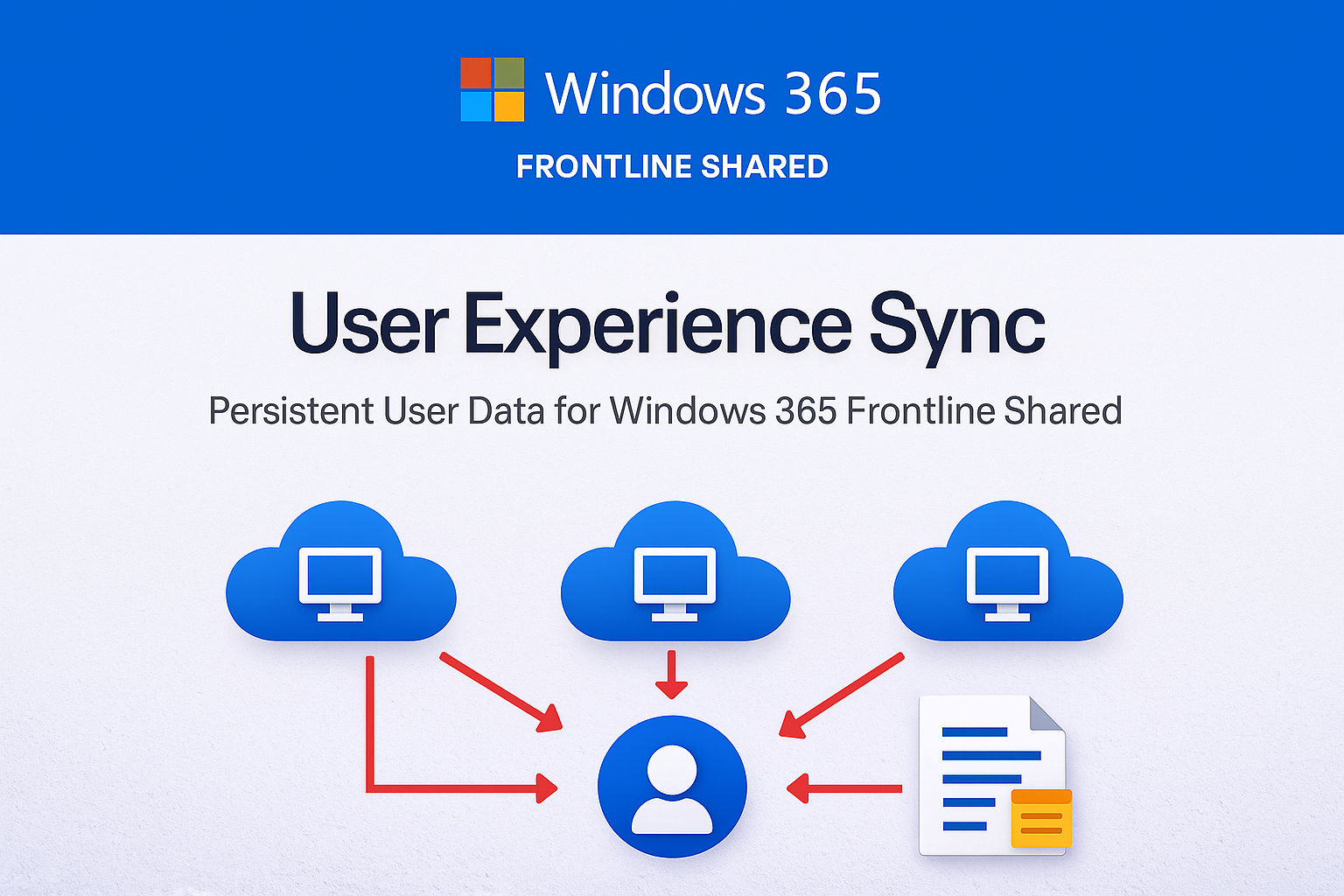
Microsoft has released User Experience Sync (UES), a fully managed solution and a great addition to Windows 365 Frontline Shared. UES allows you to store user data and let it persist across user sessions. This eliminates a challenge when working with non persistent Cloud PCs as users no longer lose their application settings, preferences, or cached data after signing out.
The challenge of working in a non persistent environment
While Windows 365 Frontline Shared offers a simple, efficient and non-persistent way to deploy Cloud PCs it also introduces some challenges for certain applications. Many applications store their settings in AppData, and because AppData lives in the user profile that is removed at sign out, this data is lost. As a result, items like connection strings or application preferences must be re entered each time, which can be very frustrating for users and will often interrupt to their workflow.
When working with non persistent environments these challenges are to be expected, and they can be addressed by configuring your applications or Cloud PCs so that everything is configured in advance. A simple example is the first run experience in Microsoft Edge. You should disable it through Intune, otherwise it will appear every time the user opens the browser in a new session.
For first party settings, there are usually built in policies or supported configuration methods available. However, when dealing with third party applications this is not always the case. You often need to rely on custom scripting, XML files, or custom application packages, which of course increases the overall complexity.
A managed user data solution
Storing user data inside a dedicated user container is nothing new. Profile solutions have been around for quite some time. Within the Microsoft ecosystem alone we have seen roaming profiles, folder redirection, User Profile Disks, and FSLogix. Although these solutions certainly have their strengths they are often also the biggest cause of issues with virtual desktop environments and cause a lot of headaches towards the operations team.
With User Experience Sync, Microsoft has created a new solution that fully addresses this issue and completely handles the process for you. It is not just an iteration of FSLogix and it doesn’t require any custom agent installations. It keeps true to the ease of use and simplicity of Windows 365 and is super easy to setup.
Requirements
User Experience Sync is built to work with Frontline Shared and thus requires a regular Windows 365 Frontline license. That’s all.
There are no additional licenses or Azure requirements from Microsoft.
Determining the amount of required storage
Storing user data does however requires storage capacity. Each user receives a minimum of 4 GB of storage, but this value can be configured (in multiples of 4) up to 64GB. The maximum amount of available storage is based on the total number of Cloud PCs inside a single Frontline Shared provisioning policy.
For example, if you have one Cloud PC with 4 vCPU, 16 GB RAM, and 128 GB of storage, you get an additional 128 GB of storage for User Experience Sync. Two of those Cloud PCs provide 256 GB, three provide 384 GB, and four provide 512 GB of UES storage. The total amount scales with the combined storage capacity of all Cloud PCs in the policy.
This is important as this changes the total amount of users that you can assign to a FLS provisioning policy. Without persistence you can easily assign 200 users to a pool of 4 Frontline Shared Cloud PCs. With UES this is not the case anymore as you require at least 4GB of storage per user. All users will have the same amount of storage quota, it’s not possible to assign more storage space to a single user or a group of users.
Example to provision UES for 200 users
In this example, 200 users with 4 Cloud PCs will give a max user profile of 2,56GB which is lower than the required minimum of 4GB. ( (4 licenses × 128 GB) ÷ 200 users = 2,56 GB per user.)
To solve this, I need to add additional Cloud PCs to my provisioning policy.
| Assigned Users | Amount of Cloud PCs | Storage per Cloud PC | Additional UES Storage | MAX UES Profile Size | Sufficient Profile Size |
|---|---|---|---|---|---|
| 200 | 4 | 128 GB | 512 GB | 2,56 GB (512/200) |  |
| 200 | 5 | 128 GB | 640 GB | 3,2 GB (640/200) | |
| 200 | 6 | 128 GB | 768 GB | 3,84 GB (768/200) | |
| 200 | 7 | 128 GB | 896 GB | 4,48 GB (896/200) |  |
| 200 | 8 | 128 GB | 1024 GB | 5,12 GB (1024/200) | |
For 200 users, you would need at least seven Cloud PCs to support a profile size of 4 GB per user. If you increase the profile size to 8 GB, you would require thirteen Cloud PCs. As an alternative to adding more Cloud PCs, you can also choose to use Cloud PC SKUs that provide a larger disk. 4 Cloud PCs of 4 vCPU / 16 GB RAM / 256 GB Storage would provide sufficient UES storage for 200 users with a profilesize of 4GB. ((4 licenses × 256 GB) ÷ 200 users = 5,1).

Not meeting the storage requirements will however NOT impact your ability to create the provisioning policy.
Configuring User Experience Sync
As mentioned earlier, setting up User Experience Sync is very straightforward. It is simply a checkbox that you enable when creating any Frontline Shared provisioning policy, whether you are deploying full desktops or Cloud Apps. Both scenarios are supported. You enable UES during the configuration step and specify the amount of storage you want to allocate to each user. That’s it, each user will now receive a dedicated profile.

Managing existing UES profiles
Managing User Experience Sync is also very simple. All user profiles are visible directly within the provisioning policy, and you can increase the storage size for all existing users by updating the configured value in that policy. This value represents the fixed storage quota assigned to every user, and it can be modified at any time on existing provisioning policies. Dynamic scaling is currently not possible.
To view all user storage, open the provisioning policy and navigate to the User Storage tab. There you can see every existing user storage container and whether it is currently in use.

Increasing the size
When you increase the storage allocation, existing users are automatically upgraded to the new value. This usually takes a few minutes to apply in the service and to appear in the admin portal. You cannot increase the size beyond the total pooled storage available. As usual, a user that has to deal with a full profile, will experience random issues.
Decreasing the size
When you decrease the storage allocation, existing users are not reduced automatically. The new limit only applies after the user profile is removed and recreated.
Managing issues
As with any solution it’s possible that users might have issues sometimes, the best thing to do is to Navigate to the User Profile and delete the individual profile. This can also be done in bulk right from within the provisioning policy.

Storage limits
Two important things happen when the total available storage capacity is exceeded.
Exceeded limits
New users can still sign in, but they receive a temporary profile because the service cannot create new user storage. Existing users with an assigned storage container can continue to sign in normally and keep their personalized experience.
Exceeded tolerance period
When pooled storage exceeds the limit, a tolerance period of seven days begins. After this period ends, the service automatically deletes the oldest unused user storage based on the last attach timestamp. Once the total storage consumption falls back under the limit, the tolerance period resets until the next time the limit is exceeded.
What UES cannot do
User Experience Sync is a fully managed and lightweight solution. Because Microsoft handles the entire service for you, some capabilities that exist in other profile solutions (and you might be used to) are not available in UES. Let me go over some:
Migrating the User Storage
Migrating User Data to another provisioning policy is not possible
Backing up User Data
Creating a backup or exporting individual or all user storage is not supported. User Experience Sync is designed with the thought that the data stored in these profiles is not business critical. Its purpose is to store application preferences and things stored in AppData. Any important files or documents should be stored in OneDrive, where they are always protected and fully backed up. Frontline Shared in combination with User Experience Sync is also not mean to replace Windows 365 Enterprise or Windows 365 Frontline Dedicated.
Browsing the User Data from an Admin perspective
It’s not possible for an admin user to open or browse the User Storage. It can only be managed in terms of sizing and be deleted.
Customizing what’s stored in the User Data
Unlike FSlogix or any other profile management solution, UES does not support custom configuration. It therefor not possible to create custom policies to include or exclude certain paths from the profile.
To Conclude
With User Experience Sync Microsoft is adding a great feature to Windows 365 Frontline Shared. It’s something that a lot of people were asking about and Microsoft clearly shows that they listen to their customers. It’s an easy to use feature, staying true to the true nature of Windows 365 and best of all, it’s included in your current license! I’m a big fan! Let me know what you think about it.



Leave a Reply