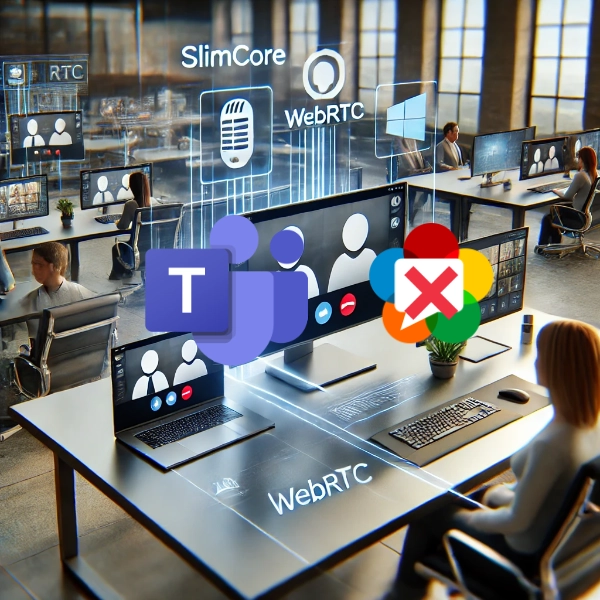
Microsoft released the new SlimCore Teams Optimizations for VDI. VDI in general means that it works for Azure Virtual desktop, Windows 365 but also for Citrix. Let me quickly show you how you can verify if you are already using it.
What exactly is SlimCore
Back in June Microsoft announced that they would be switching from WebRTC to SlimCore aiming to bring more performance and stability to Teams. If you’re using Teams on a standard endpoint, you’re already using SlimCore, as it’s the native media engine currently powering Teams. Now the VDI optimizations use the same render engine which is a big improvement as Microsoft can now focus on bringing features and updates to only a single engine.
Why do I need VDI optimizations?
Imagine two users on Teams using a Virtual Desktop. Since the desktop lives in the cloud, the audio and video must be redirected from their devices to the Virtual Desktop, then to the other person’s Virtual Desktop, and finally back to the second person’s device to output the audio and video stream. As this would require a lot of extra hops, this won’t be beneficial for the quality and performance of the call.
It would look like this:

SlimCore and WebRTC ensure that your call is offloaded to your local endpoint. To use the same flow as above it would now look like this:

WebRTC is a third party standard, thus limiting the features that Microsoft can offer to Teams on AVD of Windows 365. By switching to SlimCore Microsoft now has the option to close feature gaps between the native client and the client on AVD/Windows 365 more quickly.
How to enable the VDI optimizations
Make sure you meet the following pre-res:
- The new Teams; learn here how to upgrade manually
- Teams version 24193.1805.3040.8975 or higher
- Windows App version 1.3.252 or Remote Desktop Client: 1.2.5405.0
If you are using the store apps, the MsTeamsPluginAvd.dll is bundled within the store app installation, you don’t need to take any action to enable it.
If you want to enable this on Citrix you need to follow the custom install instructions on the Microsoft documentation, which guide you through downloading the Teams plugin and installing it. The DLL is also packed inside the plugin itself.
Verify if SlimCore is active
To check if it’s working you can check the following things;
Run the following command on your local machine.
Get-AppxPackage Microsoft.Teams.SlimCore*It will indicate the status of the new SlimCore DLL.

You can also verify in your task manager by searching for msteamsvdi, do this on your local client as well.

As a last step, in your Teams on your virtual desktop, go to the about page and check if AVD SlimCore Optimizations have been enabled.

If SlimCore is available but not working, it will show the message AVD SlimCore Media Not Connected.

That should be it!
In the newer Teams versions, Microsoft added an extra label in the upper left corner to quickly indicate whether optimizations are active. This label is visible in any Teams window, whether you’re in a call or not.


Good to know
- SlimCore will greatly increase the speed that new features reach the AVDversion.
- If SlimCore is not yet supported on your OS, such as Mac, it will fallback to WebRTC
- If you first used your Cloud PC through your Mac, SlimCore won’t be active if you start a new session from your Windows PC. You need to restart Teams first.
- regkeys like BlockNonAdminUserInstall, AllowAllTrustedApps, AllowDevelopmentWithoutDevLicense could block the installation of the SlimCore engine.
- If you the SlimCore is freshly installed, it requires two restarts of the Teams client for it to start working.



Leave a Reply