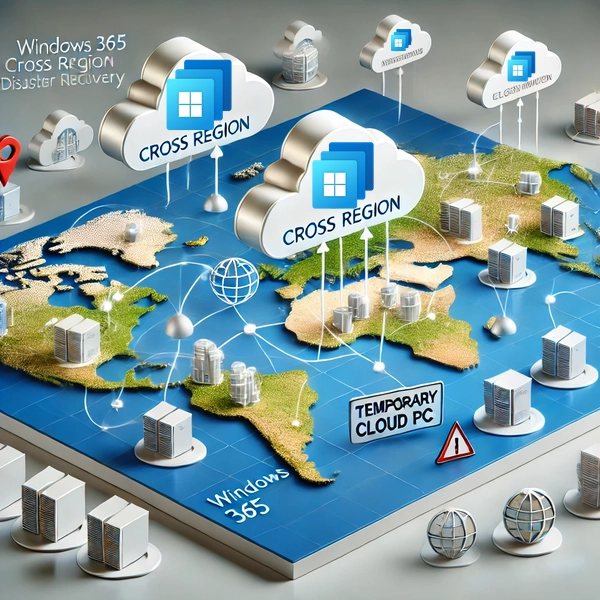
Windows 365 gained the option to perform Cross Region Disaster Recovery, this can be an extra tool on your belt when working on your Disaster Recovery and Business Continuity strategy. I dedicated a blogpost on setting this up, let me now dedicate a blogpost in explaining how you can activate it and perform a failover and failback of your Cloud PCs to a different region.
User Settings
Let me remind you that the Cross Region DR settings are located in the User Settings. The Geography that you select there will act as the secondary region of those CloudPCs, this will be visible later on.

Failover
Testing your DR strategy is very important, you can never be sure that your DR strategy is flawed or not if you’ve never tested it. Microsoft also states this as an important factor on their learn pages.

To start the failover process navigate to the bulck devices actions which are located under Devices -> All Devices -> Bulck Device Actions. From here you select Cross region disaster recovery as a device action under Windows, Cloud PCs.

In here you can see the current region the Cloud PC is active when you select one or multiple Cloud PCs.

In the final step where you confirm the failover, you see the current region and the second region where it will be active once the DR has been completed.

Once you confirm you will trigger the notification that the DR has been initiated.

Once the DR has been finished you can see the status on the device page within Intune.

In the report page (Reports -> Cloud PC overview -> Cross-Region Disaster Recovery Status) you can also see the current location and status of the Cloud PC.

Connecting to the failovered Cloud PC
Connecting to your Cloud PC when it’s active in the secondary region is just as straightforward. You can access your Cloud PC via the Windows app or by visiting https://windows365.microsoft.com/, and the experience will remain consistent. However, be aware that choosing a secondary region farther from your location may result in increased latency due to the greater physical distance from the Microsoft Datacenter.
It’s important to note that once your Cloud PC is active in the secondary region, you will receive a notification indicating that you are connected to a temporary Cloud PC. Any changes made while using this temporary Cloud PC will not be saved once you revert to your primary region.

You can verify if your Cloud PC is active in its secondary region by performing a geo-lookup of your outbound IP address. For instance, in my case, the geo-lookup clearly indicates that the IP address originates from Germany.

Failback
Moving your Cloud PC back to the primary region is as simple as initiating the initial failover. Just choose the second option to start the failback process.

When selecting the Cloud PCs you want to move back you’ll notice that it’s currently residing in the secondary region, as you defined in the User Settings.

In the final step, you’ll see a confirmation notice asking you to confirm that you want to deactivate cross-region disaster recovery.

Good to know
- It’s easy to activate and deactivate cross region disaster recovery
- You are working on temporary Cloud PC when you activate DR.
- Changes on this temporary Cloud PC will be lost once you failback your Cloud PC
- You might experience added latency because of the secondary region being less close to your current physical location



Leave a Reply