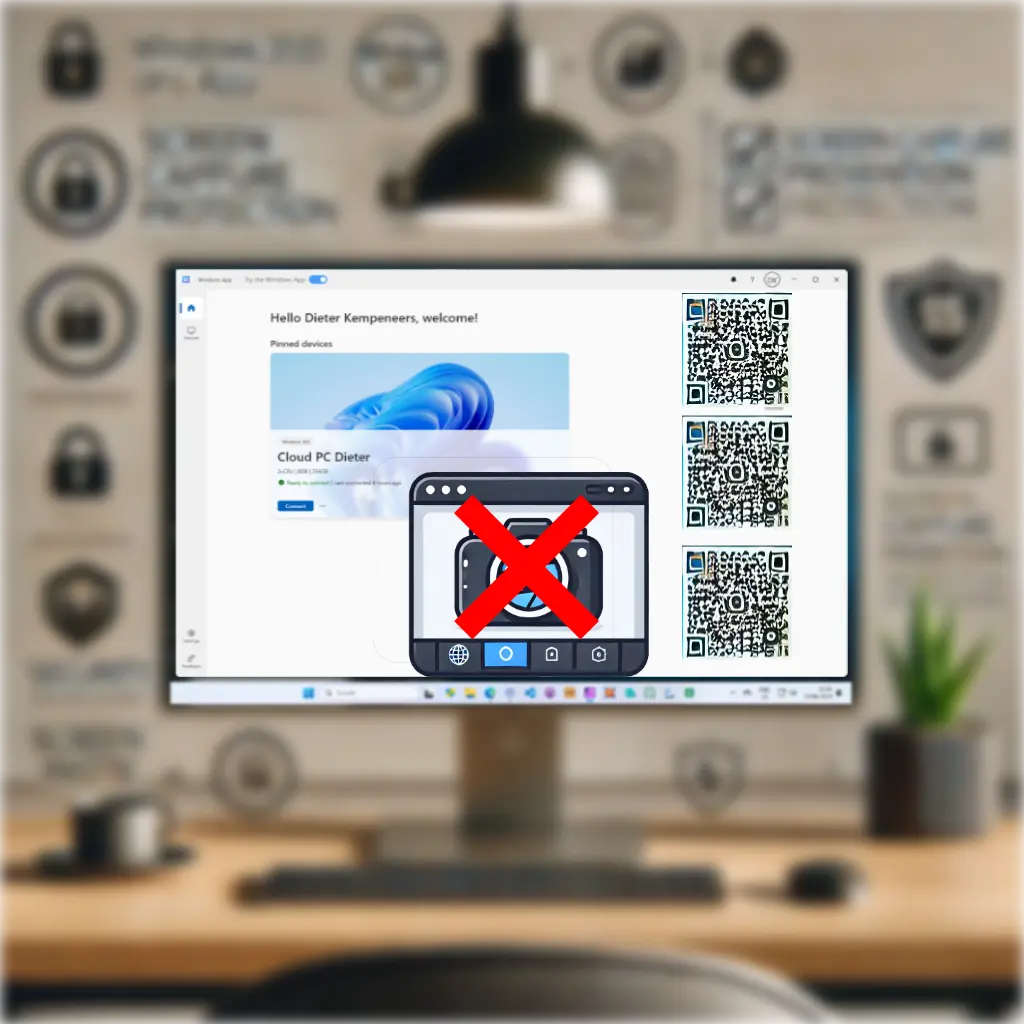
Another lesser-known but really cool feature of Windows 365 (and Azure Virtual Desktop, for that matter) is screen capture (or screenshot) protection. You can easily protect your entire remote session so that when a screenshot is taken it will be a black box.
I hear you. What do you do if you want to take a picture of sensitive data and a screenshot is not working? Yeah, you take out your phone and take a picture. Well, that’s covered as well.
Why should you use it?
One of the many use cases of Windows 365 is to provide access to corporate data from unmanaged devices. You offer a managed Cloud PC that they can access from anywhere This provides a solution to the lack of control over the software, updates, and anti-malware policies on the physical device itself. With Windows 365 you effectively separate the corporate environment from any unmanaged environment. But what if a bad actor is willingly or unwillingly taking screenshots of your Cloud PC?
Microsoft thought of that as well and they offer the possibility to configure both screen capture protection and watermarking.
This is very powerful!
Screen Capture Protection
The first layer of defense is the feature called “Screen Capture Protection”, you can expect exactly what the name states. It will protect you from any form of screen capture. This includes screenshots but also screen sharing through Microsoft Teams or other screen sharing software.
There are two ways to configure screen capture protection. You can either prevent applications within the remote session (Block screen capture on client) from being screen captured or you can block both the Windows app used to connect to the session and the session itself (Block screen capture on client and server).
This would make sure that even screenshots taken within the session wouldn’t be transferable to the physical device even if clipboard redirection is not prohibited.
Watermarking
Watermarking is a great feature in addition to screen capture protection. It basically creates an additional transparent layer on top of your remote session with a set of QR codes. These QR codes can be configured so you can determine the space between each other but also what the embedded content of the QR code should be.
Watermarking is really cool, but can be really intrusive to end-users. Microsoft recently announced MAM support for Windows 365 and Azure Virtual Desktop. This could potentially give you the option to for example activate watermarking when connecting from an unmanaged device, but turn it off when connecting from a managed device. How cool is that?
Keep in mind that you can configure the opacity and size of the QR codes to your preference. It’s up to you to find the right balance so they are visible without interfering with user productivity.
It can look like this:

How to configure
Both screen capture protection and watermarking can be configured using traditional GPOs but also through Intune. Because GPOs are considered legacy, I will only cover the setup through Intune.
The settings are located within the settings catalog, so navigate to Intune, and create or edit a Configuration Profile. This policy will be assigned to a devices scope.

Follow the traditional steps of creating a Configuration Profile.

In the settings picker, browse to Administrative templates > Windows Components > Remote Desktop Services > Remote Desktop Session Host > Azure Virtual Desktop.
In here you can both enable screen capture protection as well as watermarking.

Now choose the options that you want, and continue to the assignments, select your device group that you want to assign the policy to and finish creating the policy.

That’s it. As you can see, it’s very easy to configure and significantly enhances your overall security footprint.
Result
As a last step, let me show you the end result of this policy. I’ll show you the config, with and without the screenshot protection and watermarking.
Without screen capture protection and without watermarking
As you can see, the Cloud PC is visible and no watermarking is applied.

With screenshot protection enabled, only the Windows app will be blacked out. I added a Word document on my physical device, because only a picture of a black box doesn’t say much.

The final result is better visible from the picture that I took from my phone, see the QR codes that are overlayed on the whole Windows 365 session.

Good to know
There are some requirements to make use of these features:
- Screen capture protection
- A supported app:
- The Windows App (Both Windows and MacOS) -> This is the preferred app as this will replace all the other apps.
- AVD store app
- RD client v 1.2.1672 or later for Windows and RD client for MacOS v 10.7.0 or later
- For in-guest protection only: A supported version of Windows 10 or Windows 11
- To protect the whole Windows App: Windows 11, version 22h2 or later.
- If you want to protect RemoteApp as well, on Windows you need to be on Windows 11 22h2 or later.
- A supported app:
- Watermarking
- A supported app:
- The Windows App for Windows and MacOS
- RD client
- The web interface.
- RD client v 1.2.3317 or later for Windows and RD client for MacOS v 10.5.4 or later
- A supported app:
But there are also some things to take into consideration:
If you enable screen capture protection, any connection through the web browser will fail. You will be presented with an error message. As mentioned earlier, if you activate this setting, but also join Teams meetings through your Cloud PC, you will no longer be able to share your screen.
Activating watermarking will not impact your screensharing capabilities nor the apps you can use to connect.
This is the error message you get when you try to access your Windows 365 through the web browser, with screen capture protection enabled.
A funny side note is that the error message in Dutch advises you to enable screen capture protection, but it should actually instruct you to disable it.

Conclusion
Screen capture protection and watermarking are powerful features that significantly enhance the security of your Windows 365 or Azure Virtual Desktop environment. By preventing unauthorized screenshots and adding traceable QR codes, these tools help you to protect sensitive information.
Enhancing your security with only screen capture protection or watermarking is not enough if you don’t combine it with other settings. Consider it a valuable tool in your security toolkit, but don’t rely on it as your sole security measure.
From a Windows 365 perspective, combine it with settings to block clipboard and drive redirection. So files can’t be copied over. But even better would be to look at sensitivity labeling within Microsoft Purview, so even when a document is leaked, someone without the appropriate access won’t be able to access the document.



Leave a Reply